English VPN Tutorials and Setup
Updated
English VPN tutorials explain Windows setup, Edge extensions, mobile basics, streaming limits, privacy checks, and practical steps for choosing and using a VPN.
Editor's pick: NordVPN — fast, secure VPN — Strong encryption, a no-logs policy and apps for every device. 30-day money-back guarantee. Get NordVPN →
Compare VPN setup options for everyday devices
| Option | Best suited to | Setup effort | Browser coverage | Mobile use | Useful check |
|---|---|---|---|---|---|
| Windows app | Windows devices | Install and sign in | Browser traffic via app | Not applicable | Confirm connection status |
| Browser extension | Browser-specific use | Add extension and sign in | Supported browsers only | Usually desktop-focused | Check extension permissions |
| Mobile app | Phones and tablets | Install and sign in | Traffic from supported apps | Supported | Check VPN status indicator |
| Router setup | Multiple home devices | More involved | All routed device traffic | Supported through Wi-Fi | Confirm router compatibility |
| Manual setup | Devices without an app | Follow provider instructions | Depends on device | May be supported | Verify protocol settings |
| App plus extension | Device and browser controls | Set up both tools | Browser-specific controls | Depends on provider | Avoid conflicting settings |
Compiled November 2026; check the provider's site for current details.
Practical VPN help for everyday devices
This section covers VPN setup, browser extensions, streaming access, and connection troubleshooting for readers who want clear steps before changing device settings. Our focus is practical instruction: the English pages explain where to find an app, how to install it, which settings matter, and what to check when a connection fails. The current topics include NordVPN for Windows PCs and free VPN extensions for Microsoft Edge, with room for related mobile and privacy tutorials.
The intended audience is broad: people in the United States and elsewhere who use Windows laptops, Android phones, iPhones, or common browsers, and who want to understand VPN features without assuming prior technical knowledge. A VPN can encrypt traffic between a device and a VPN provider, but it does not make every online activity anonymous or guarantee access to a particular service. We keep those limits part of the explanation, rather than treating a VPN as a universal fix.
Readers will find instruction organized around specific tasks: installing an app, choosing a server, checking protocol and auto-connect options, and assessing browser add-ons. Pages distinguish provider claims from steps users can verify on their own devices. When details such as app menus or supported operating systems change, the safest approach is to confirm them in the provider’s current documentation before following an older screenshot or download instruction.
Coverage shaped around Windows, browsers, and mobile use
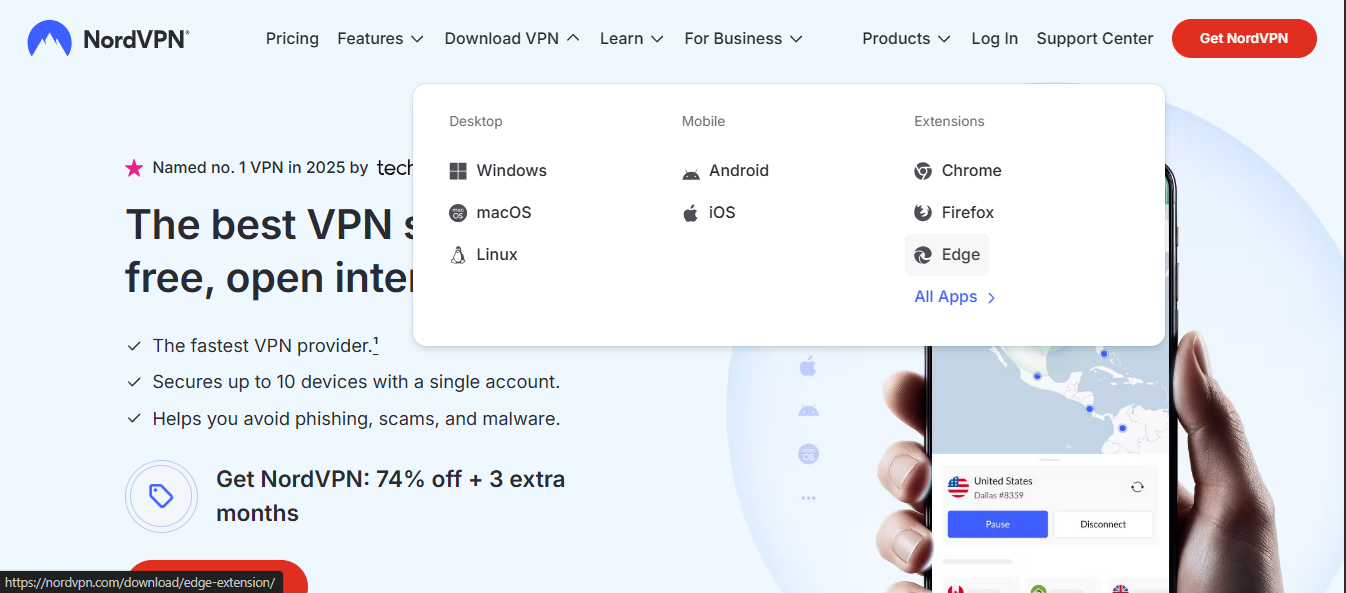
The Windows walkthrough coverage starts with the ordinary PC workflow: download the installer, open the Downloads folder, run the setup file, sign in, and connect. NordVPN’s support instructions identify the Windows installer as NordVPNInstall.exe for the current app workflow. The page also points readers toward choices such as protocol, auto-connect, and kill switch preferences. Those settings deserve plain-language explanations, because a feature name alone does not tell a new user what changes when it is enabled. Nord VPN for PC: How to Download, Install, and Use It
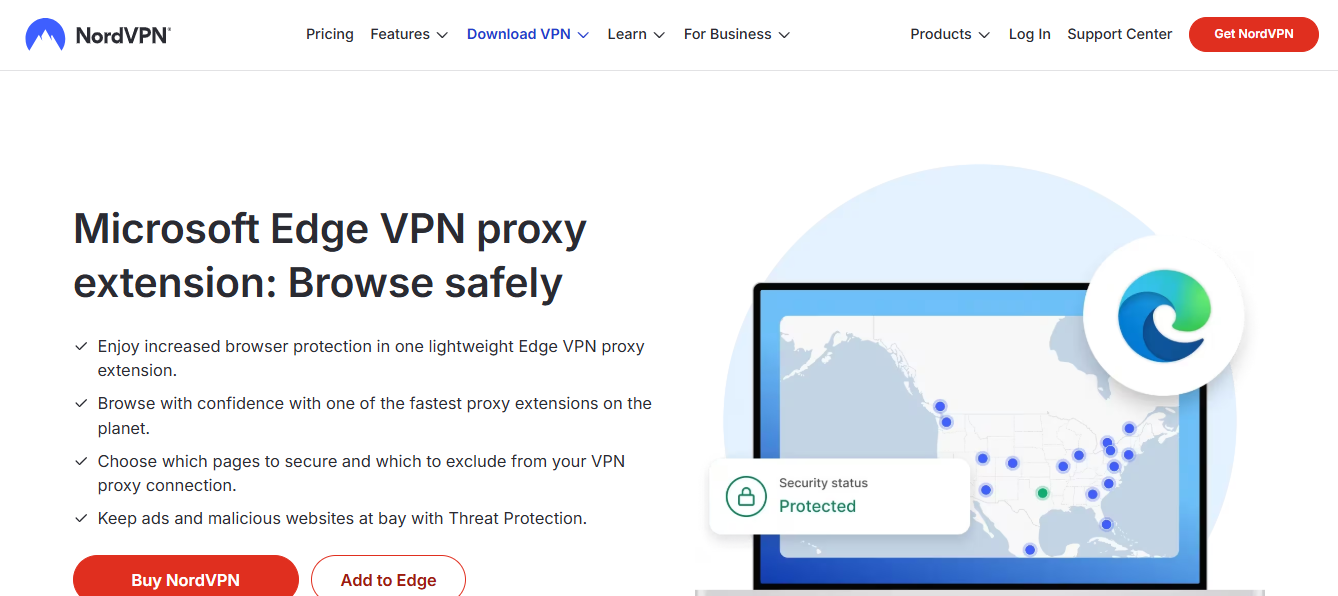
Browser extensions are a separate topic, not simply smaller versions of full VPN apps. The Edge coverage considers what an extension can and cannot protect, how to check its publisher and permissions, and why an apparently free offer should be evaluated carefully. A browser add-on may affect browser traffic without routing every app on the computer through a VPN. That distinction is important for anyone switching between Edge, desktop software, and other connected devices.
Mobile setup is also relevant to this site’s wider tutorial focus. On an iPhone or Android device, readers may need help finding the correct app, signing in, approving a system VPN prompt, and checking whether the connection indicator appears. The same account may support more than one platform, but device-specific menus differ. We favor steps that name the operating system and screen action instead of vague directions such as “configure your VPN.”
How to read a VPN comparison
NordVPN and ExpressVPN are familiar reference points for comparing established commercial services, while a free Edge extension raises a different set of questions. Prices change with promotions, billing periods, taxes, and renewal terms, so this section does not present an unverified subscription price as a current offer. Check the checkout total and renewal amount before paying, and compare the plan duration as well as the headline monthly equivalent.
| Option | Typical use | What to verify |
|---|---|---|
| NordVPN Windows app | Route PC traffic through a VPN connection | Installer source, protocol, auto-connect, and kill switch settings |
| ExpressVPN app | Commercial VPN option for supported devices | Current plan price, renewal terms, device support, and app features |
| Free Edge extension | Browser-focused access or protection, depending on the provider | Publisher identity, permissions, traffic coverage, and privacy terms |
| VPN built into a router | Connect compatible devices through one network setup | Router support, configuration complexity, and which devices are covered |
This rundown is a starting point, not a ranking. A Windows app may suit someone who wants coverage beyond one browser, while an extension may be convenient for a browser-specific task. Router setup can cover several devices but usually requires more careful configuration. The right comparison depends on the job, the platforms in use, and whether the provider’s current terms meet the reader’s needs. VPN Extension for Edge Free: How to Choose One Safely
Read a VPN comparison by checking practical features
| Comparison point | What to look for | Why it matters | Helpful question |
|---|---|---|---|
| Device support | Apps for your devices | Determines setup options | Does it support your operating system? |
| Browser support | Extension availability | Adds browser-specific controls | Which browsers are supported? |
| Ease of setup | Clear install instructions | Helps avoid configuration mistakes | Can you follow the steps easily? |
| Privacy information | Plain-language policies | Explains how data is handled | What does the provider say it logs? |
| Connection checks | Status and leak-check guidance | Helps confirm the VPN is working | How can you verify the connection? |
| Streaming access | Service-specific expectations | Availability can change | Does it make realistic claims? |
| Support resources | Tutorials and troubleshooting | Useful when setup fails | Are current help guides available? |
Compiled November 2026; check the provider's site for current details.
Safe setup steps and useful checks
Installation is usually straightforward, but a few deliberate checks help avoid common mistakes. Use the provider’s official download page rather than an unfamiliar installer mirror, confirm that the app matches the operating system, and review permissions before approving them. Never treat a successful install as proof of privacy; check that the app is connected and understand what the selected setting does.
- Identify the device and operating system, such as Windows 11, macOS, Android, or iOS.
- Download the matching app from the provider’s official site or the device’s verified app store.
- Open the installer from Downloads and follow the prompts; on Windows, check the installer name before running it.
- Sign in, review protocol and auto-connect options, and enable a kill switch only after understanding its effect.
- Connect to a server, then check the app status and test the websites or apps you actually use.
- If something fails, check account status, app updates, network access, and the provider’s current troubleshooting instructions.
These steps are useful for readers in the United States, where home connections may come from providers such as Comcast Xfinity, Spectrum, or AT&T, as well as for international readers using different networks. A VPN can change the apparent public IP address seen by websites, but it cannot resolve every ISP, Wi-Fi, device, or account problem. Keep the original connection in view when troubleshooting: temporarily disconnecting the VPN can help identify whether the issue is the VPN route or the underlying network. VPN Extension Edge Free: How to Choose One Safely
Streaming, privacy, and realistic expectations
Streaming access is a common reason people investigate VPNs, but services decide what content is available and may restrict access based on licensing, account rules, or detected VPN connections. Results can vary by title, server, device, and date. In the United States, users may be comparing services such as Netflix, Hulu, or Peacock; availability and terms differ across countries. No tutorial can promise that a specific server will unlock a particular program, and readers should follow the streaming service’s rules.
Privacy also involves more than hiding an IP address from a website. A VPN provider may process connection information, and websites can still identify users through logged-in accounts, cookies, or browser fingerprints. Readers should review the provider’s privacy policy, data retention statements, independent audit details where available, and cancellation terms. We emphasize informed choices over blanket claims, especially when a service advertises itself as free or “anonymous.”
The English section is meant to make those decisions easier to understand, not to replace provider support or legal advice. Its strongest coverage is device setup and safe use: Windows installation, Edge extension checks, connection settings, and practical troubleshooting, with mobile guidance as a natural adjacent topic. Before following any instruction, match it to the current app version and device. That simple habit helps readers avoid outdated steps and choose a VPN setup that fits their actual use.
// English
- 01[VPN]
VPN PES: What It Does and How to Choose One for eFootball
Learn what “VPN PES” can mean, when a VPN may help with eFootball, and how to choose a safe option without expecting lower ping.
卜南枝November 29, 2026[en] - 02[VPN]
Urban VPN Edge: How to Install, Use, and Evaluate the Extension
Learn how to add Urban VPN to Microsoft Edge, connect to a server, and weigh its benefits and limitations.
宓清越November 29, 2026[en] - 03[VPN]
FortiClient VPN Download: Official Links and Installation Guide
Download FortiClient VPN from Fortinet or your device’s official app store, then install it and obtain connection details from your VPN administrator.
卜南枝November 29, 2026[en]