NordVPN for Windows: How to Download, Install, and Use It
Learn how to install NordVPN on Windows, connect to a server, and troubleshoot common connection problems.
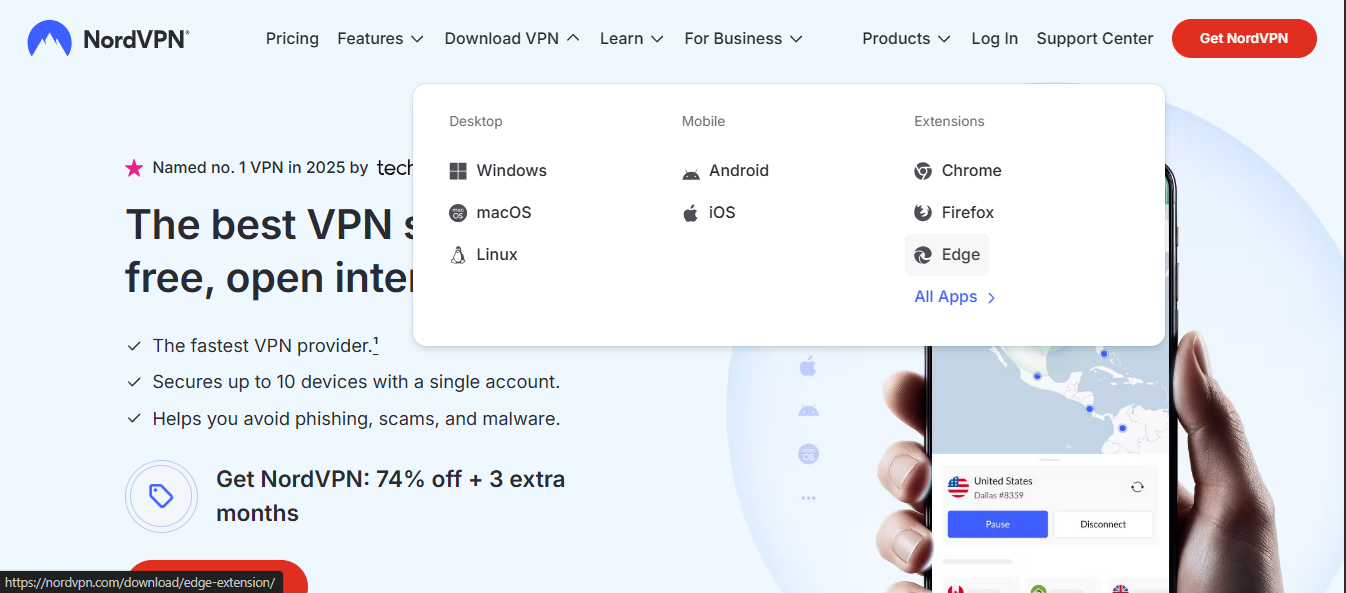
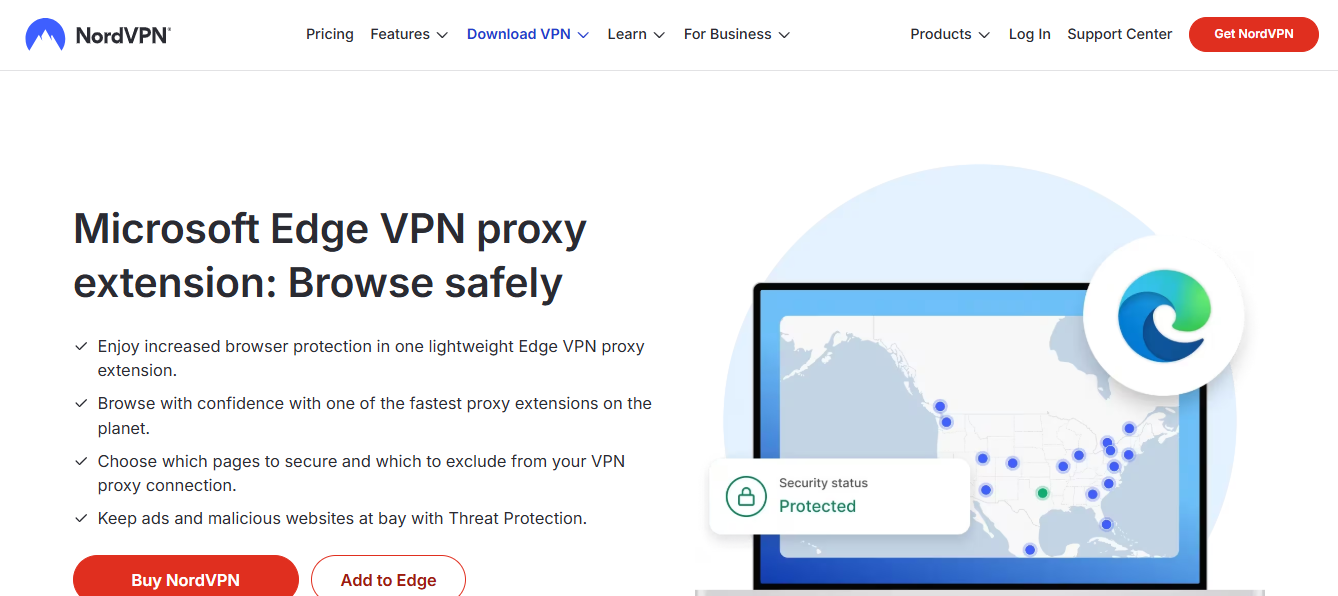
NordVPN works on Windows 10 (64-bit) and Windows 11. To get started, download the Windows app from NordVPN’s official website, install it, and sign in with your Nord Account. Once connected to a VPN server, your internet traffic travels through an encrypted connection, helping protect it while you browse, stream, or work online.
Editor's pick: NordVPN — fast, secure VPN — Strong encryption, a no-logs policy and apps for every device. 30-day money-back guarantee. Get NordVPN →
Check these requirements before installing NordVPN on Windows
| Requirement | What to check | Why it matters | If it’s not ready |
|---|---|---|---|
| Windows PC | Confirm you’re using a Windows computer | The app is for Windows | Use the setup for your device |
| Windows version | Check that your Windows version is supported | The app may not work on every version | Update Windows or check compatibility |
| Internet connection | Confirm you can get online | You need internet to download and connect | Restore your connection first |
| Nord Account | Have your Nord Account login ready | You’ll need to sign in | Create an account or recover your login |
| Download source | Use NordVPN’s official website | Helps ensure you get the genuine installer | Avoid unfamiliar download sites |
| Installation access | Be able to install software on the PC | Windows may request permission | Ask the device administrator |
| Existing VPN | Check whether another VPN is running | Two VPN connections can conflict | Disconnect or close the other VPN |
Compiled November 2026; check the provider's site for current details.
| VPN | Obfuscation | From / month | Plan | Free plan | Refund | Alipay | UnionPay | Crypto | Website opens in China | Trustpilot | |
|---|---|---|---|---|---|---|---|---|---|---|---|
 NordVPN | Turn on manually Obfuscated Servers / NordWhisper | $3.49/mo | 27 months: $94.23 | No | 30 days | ? | ✗ | ✓ | ✓ | ✗ Blocked | 4.2/5 (51,628 reviews) |
 ZoogVPN | Turn on manually Shadow | $2.49/mo | 27 months: $59.99 | Yes | 7 days | ✓ | ✓ | ✓ | ✓ | Official site blocked; our special link opens (4.4 s) | 4.2/5 (195 reviews) |
 ExpressVPN | ✓ On by default all servers | $3.00/mo | 28 months: $84 | No | 30 days | ✗ | ✗ | ✓ | ✗ | ✗ Blocked | 4.4/5 (29,706 reviews) |
 Surfshark | ✓ On by default Camouflage, with OpenVPN | See site | See site | No | 30 days | ✗ | ✗ | ✗ | ✓ | ✗ Blocked | 4.3/5 (31,823 reviews) |
 Proton VPN | Turn on manually Stealth, free plan too | $2.99/mo | 12 months: $35.88 | Yes | 30 days | ✗ | ✗ | ✗ | ✓ | ✗ Blocked | 2.1/5 (1,040 reviews) |
 Astrill VPN | Turn on manually StealthVPN / OpenWeb | $12.50/mo | 24 months: $300 | No | See site | ✗ | ✗ | ✗ | ✓ | ✗ Blocked | 1.3/5 (110 reviews) |
 Private Internet Access | Turn on manually Shadowsocks, OpenVPN only | $2.03/mo | 40 months: $81.2 | No | 30 days | ✗ | ✗ | ✗ | ✗ | ✗ Blocked | 4.2/5 (11,033 reviews) |
 CyberGhost | Turn on manually selected servers | $2.19/mo | 28 months: $61.32 | No | 45 days | ✗ | ✗ | ✗ | ✓ | ✗ Blocked | 4.0/5 (24,178 reviews) |
 PureVPN | Turn on manually switch to OpenVPN | $1.69/mo | 60 months: $101.55 | No | 31 days | ? | ? | ✗ | ✓ | ✗ Blocked | 4.4/5 (17,994 reviews) |
 AdGuard VPN | ✓ On by default TrustTunnel | $2.99/mo | 24 months: $71.76 | Yes | 30 days | ✓ | ✗ | ✓ | ✓ | Official site blocked; our special link opens (3.7 s) | 4.3/5 (290 reviews) |
 Mullvad | Turn on manually QUIC / Shadowsocks / LWO | $5.61/mo | €5/mo | No | 14 days | ✗ | ✗ | ✗ | ✓ | ✗ Blocked | 3.2/5 (192 reviews) |
 Windscribe | Turn on manually Stealth / WStunnel | $5.75/mo | 12 months: $69 | Yes | See site | ✗ | ✗ | ✗ | ✓ | ✗ Blocked | 4.7/5 (13,355 reviews) |
 StrongVPN | Turn on manually Scramble, OpenVPN TCP | See site | See site | No | 30 days | ✓ | ✗ | ✗ | ✗ | ✗ Blocked | 4.4/5 (2,695 reviews) |
 LightXtreme 闪连 | Not listed | $7.08/mo | 12 months: $84.99 | Yes | 30 days | ✓ | ✓ | ✓ | ✓ | ✓ Yes (3.5 s) | No page |
Prices checked 2026-11-10 on each vendor's pricing page (cheapest long plan, USD). Check the vendor's checkout for the final price.
Obfuscation checked 2026-11-14 on each vendor's site and help center: "on by default" = nothing to set; "turn on manually" = switch protocol or mode in settings; "not listed" = the vendor describes no obfuscation.
Payment methods checked 2026-11-10 on each vendor's payment pages: all 14 take cards and PayPal; ✗ = not listed, ? = the vendor's own pages disagree.
China access: whether the official website opens from mainland China networks (tests the website only, not the VPN connection). Last checked 2026-11-18 01:02 Beijing time.
Trustpilot score and review count checked 2026-11-10.
What you need before installing NordVPN
Before downloading the app, make sure your PC meets the basic requirements:
- A computer running Windows 10 (64-bit) or Windows 11.
- A working internet connection to download the app and sign in.
- A Nord Account. If you do not have one, you can create an account through NordVPN.
Use NordVPN’s official Windows download page to get the installer. Downloading from the official source helps ensure you get the intended app and its updates. Avoid unfamiliar download sites when you can.
How to download and install NordVPN on Windows
The setup process is straightforward:
- Open NordVPN’s official Windows download page.
- Download the installer to your PC.
- Open the downloaded file and follow the on-screen instructions.
- Launch the NordVPN app after installation.
- Sign in with your Nord Account.
If Windows asks you to approve the installation, review the prompt and allow it to continue only if you started the download from NordVPN’s official website. When setup finishes, the app should open so you can sign in and choose a connection. Microsoft Edge Secure Network VPN Reviews: Is It Safe and Worth Using?
First connection
After signing in, connect using the app’s available server options. You can select a location or use the app’s quick-connect option to establish a VPN connection without choosing a server yourself. The app indicates when you are connected.
To check that the VPN is active, look at the connection status in NordVPN. You can also visit a reputable IP-checking website and see whether the displayed IP address reflects your VPN connection rather than your usual connection.
Choose between the NordVPN app and manual VPN setup
| Comparison point | NordVPN for Windows app | Manual VPN setup |
|---|---|---|
| Setup approach | Install the app and sign in | Configure the VPN through Windows |
| Server selection | Choose a server in the app | Depends on the manual configuration |
| Connection controls | Use the app’s connection controls | Use Windows network settings |
| Feature access | App features are available | App-specific features may not be available |
| Configuration effort | Guided app setup | Requires entering connection details |
| Best suited to | Most users seeking a straightforward setup | Users who prefer Windows’ built-in VPN settings |
| Changing locations | Select another location in the app | May require changing the configuration |
| Troubleshooting | Check app settings and connection status | Check Windows settings and VPN details |
Compiled November 2026; check the provider's site for current details. Nord VPN in China: Does It Work and How to Prepare
What NordVPN for Windows can help with
A VPN can encrypt traffic between your computer and the VPN server. This can add privacy when using the internet, including on public Wi-Fi. It can also change the IP address websites see, which may affect access to online services.
The Windows app is intended for everyday activities such as:
- Browsing and working online.
- Connecting through public or shared Wi-Fi.
- Streaming, subject to the service’s own availability and rules.
- Choosing a VPN server location from the app.
A VPN does not make you anonymous or protect against every online threat. You still need to use strong passwords, keep Windows and your apps updated, and watch out for suspicious links and downloads. Some websites and streaming platforms may restrict VPN connections, so access is not guaranteed.
App versus manual VPN setup
For most users, NordVPN’s Windows app is the simplest option. It handles the connection through a dedicated interface, while manual setup involves configuring a VPN connection through Windows settings. Does Microsoft Edge Have VPN? What Edge Secure Network Does
| Option | Best for | What to expect |
|---|---|---|
| NordVPN app | Most Windows users | Install the app, sign in, and connect using its interface. |
| Manual Windows setup | Users who specifically need a built-in connection | Configure a connection in Windows settings using the required service details. |
If you are new to VPNs, start with the official app. It is the more direct route for connecting and managing your VPN on a Windows PC.
Troubleshoot common NordVPN connection problems on Windows
| Problem | First check | Try next | If it continues |
|---|---|---|---|
| Installer won’t open | Confirm the download completed | Download the installer again from NordVPN | Check Windows permissions |
| App won’t sign in | Check your internet connection | Verify your Nord Account details | Recover your account access |
| VPN won’t connect | Check that internet works without the VPN | Select another server | Restart the app and retry |
| Connection drops | Check whether your internet is stable | Reconnect to a server | Try another network |
| Slow connection | Check your usual internet speed | Connect to a nearby server | Test another server |
| Website won’t load | Check whether it loads when disconnected | Reconnect or try another server | Check the website or browser |
| Another VPN is active | Check for a second VPN connection | Disconnect the other VPN | Retry NordVPN |
| Problem persists | Note the error message | Restart the app and Windows | Contact NordVPN support |
Compiled November 2026; check the provider's site for current details.
Troubleshooting NordVPN on Windows
If the app does not connect or behaves unexpectedly, try these checks: How to Enable VPN in Edge: Turn On Microsoft Edge Secure Network
- Confirm that your regular internet connection is working.
- Close and reopen the NordVPN app, then try connecting again.
- Restart your PC and check for Windows updates.
- Try a different server or connection option in the app.
- Check whether a firewall or security program is interfering with the connection.
- Sign out and back in if the app is not recognizing your account.
If the problem continues, consult NordVPN’s Windows support instructions for current troubleshooting steps. For persistent account, installation, or connection issues, contact NordVPN support and explain what you have already tried.
Why might NordVPN not work on Windows 11?
Connection problems on Windows 11 can have several causes, including an unstable internet connection, outdated software, or settings that conflict with the VPN. First confirm that you can access the internet without the VPN, then restart the app and PC and install available updates. If those steps do not help, follow NordVPN’s support guidance rather than changing unfamiliar network settings at random.
Recommendation
For a Windows PC running Windows 10 (64-bit) or Windows 11, download NordVPN from its official website, install the app, and sign in with your Nord Account. Use the app’s connection status to confirm when the VPN is active, and consult NordVPN support if troubleshooting does not resolve a problem.