VPN Free Extension Edge: How to Choose and Use One Safely
Find out how free VPN extensions for Edge work, what to check before installing one, and when a full VPN app is a better choice.
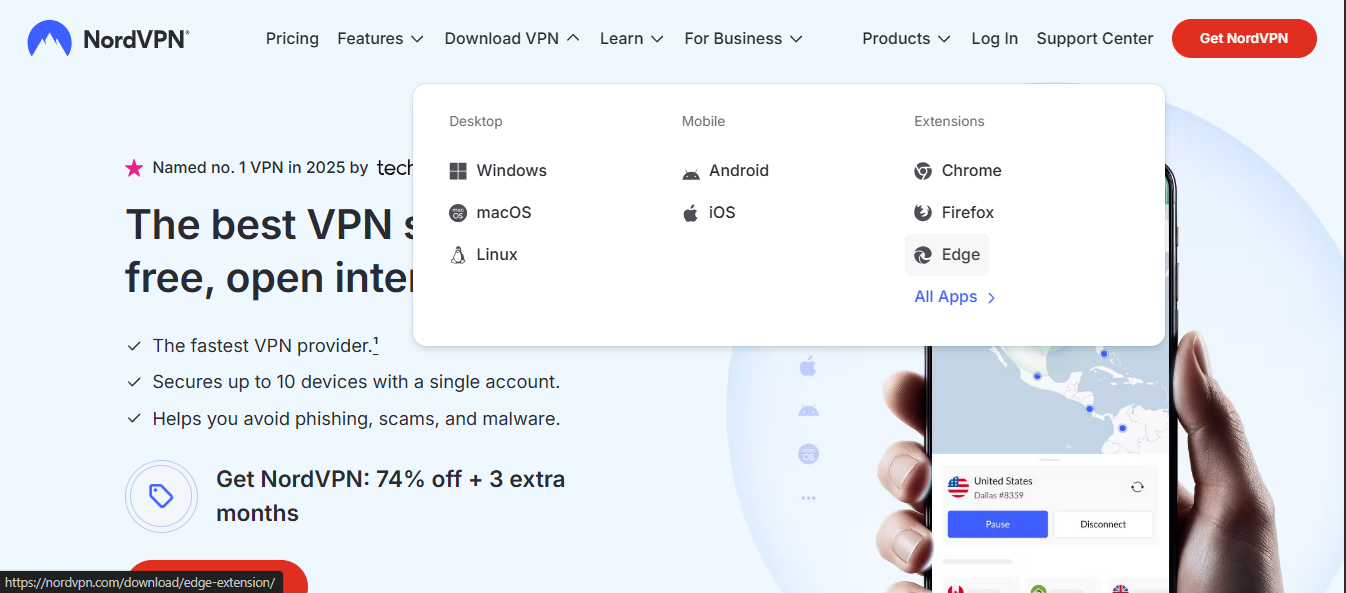
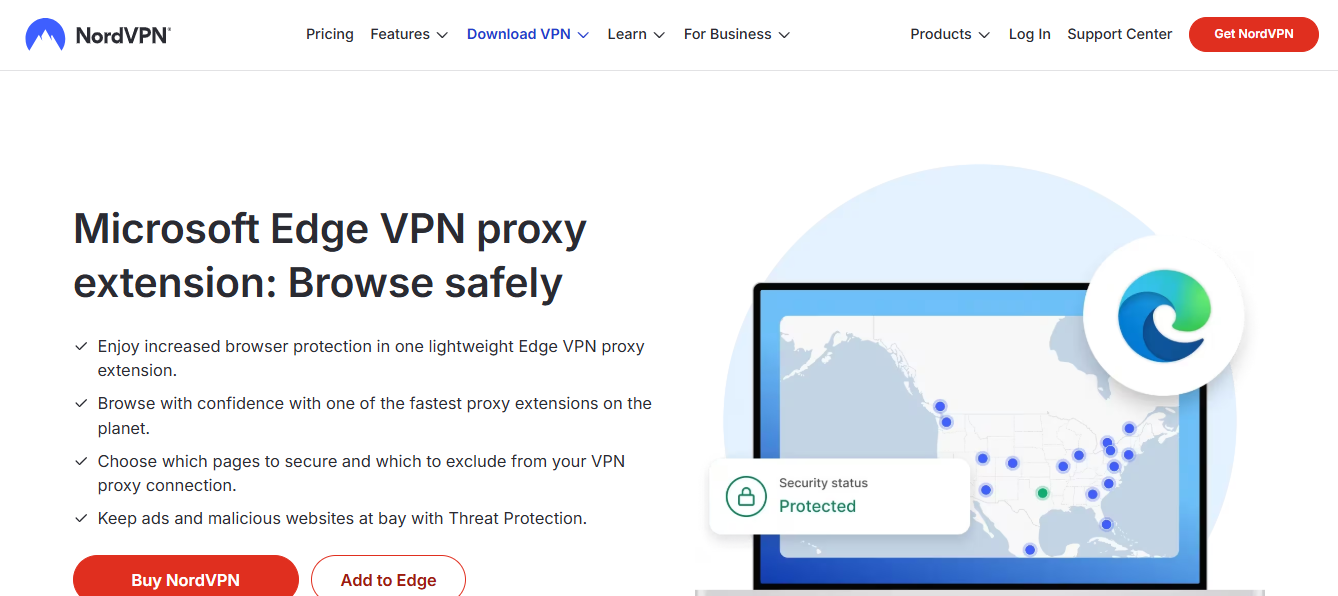
A VPN free extension for Edge can help protect your browser traffic and change the virtual location websites see. Options listed for Microsoft Edge include VeePN, Browsec VPN, VuzeVPN, and FreeVPNPlanet; Surfshark also offers an Edge extension. “Free” does not mean every feature is included or that all device traffic is covered, so check the extension’s terms and settings before relying on it.
Editor's pick: NordVPN — fast, secure VPN — Strong encryption, a no-logs policy and apps for every device. 30-day money-back guarantee. Get NordVPN →
Free VPN options to compare in Edge
| Option | Edge availability | Free plan | Best for | Check before use |
|---|---|---|---|---|
| Microsoft Edge VPN extension | Edge Add-ons listing | Varies | Browser-based setup | Provider and plan terms |
| Browser proxy extension | May be available | Varies | Simple browser routing | Whether traffic is encrypted |
| VPN provider extension | Provider-dependent | Varies | Using an existing VPN account | Free-plan limits |
| VPN desktop app | Works alongside Edge | Varies | Protecting more than browser traffic | Device and data limits |
| Built-in browser feature | Depends on browser | Varies | Convenient browser-only use | Whether it is a VPN or proxy |
| Free VPN service | Extension or app may be offered | Usually limited | Occasional browsing | Privacy policy and restrictions |
Compiled November 2026; check the provider's site for current details.
| VPN | Obfuscation | From / month | Plan | Free plan | Refund | Alipay | UnionPay | Crypto | Website opens in China | Trustpilot | |
|---|---|---|---|---|---|---|---|---|---|---|---|
 Surfshark | ✓ On by default Camouflage, with OpenVPN | See site | See site | No | 30 days | ✗ | ✗ | ✗ | ✓ | ✗ Blocked | 4.3/5 (31,823 reviews) |
 ZoogVPN | Turn on manually Shadow | $2.49/mo | 27 months: $59.99 | Yes | 7 days | ✓ | ✓ | ✓ | ✓ | Official site blocked; our special link opens (4.4 s) | 4.2/5 (195 reviews) |
 NordVPN | Turn on manually Obfuscated Servers / NordWhisper | $3.49/mo | 27 months: $94.23 | No | 30 days | ? | ✗ | ✓ | ✓ | ✗ Blocked | 4.2/5 (51,628 reviews) |
 ExpressVPN | ✓ On by default all servers | $3.00/mo | 28 months: $84 | No | 30 days | ✗ | ✗ | ✓ | ✗ | ✗ Blocked | 4.4/5 (29,706 reviews) |
 Proton VPN | Turn on manually Stealth, free plan too | $2.99/mo | 12 months: $35.88 | Yes | 30 days | ✗ | ✗ | ✗ | ✓ | ✗ Blocked | 2.1/5 (1,040 reviews) |
 Astrill VPN | Turn on manually StealthVPN / OpenWeb | $12.50/mo | 24 months: $300 | No | See site | ✗ | ✗ | ✗ | ✓ | ✗ Blocked | 1.3/5 (110 reviews) |
 Private Internet Access | Turn on manually Shadowsocks, OpenVPN only | $2.03/mo | 40 months: $81.2 | No | 30 days | ✗ | ✗ | ✗ | ✗ | ✗ Blocked | 4.2/5 (11,033 reviews) |
 CyberGhost | Turn on manually selected servers | $2.19/mo | 28 months: $61.32 | No | 45 days | ✗ | ✗ | ✗ | ✓ | ✗ Blocked | 4.0/5 (24,178 reviews) |
 PureVPN | Turn on manually switch to OpenVPN | $1.69/mo | 60 months: $101.55 | No | 31 days | ? | ? | ✗ | ✓ | ✗ Blocked | 4.4/5 (17,994 reviews) |
 AdGuard VPN | ✓ On by default TrustTunnel | $2.99/mo | 24 months: $71.76 | Yes | 30 days | ✓ | ✗ | ✓ | ✓ | Official site blocked; our special link opens (3.7 s) | 4.3/5 (290 reviews) |
 Mullvad | Turn on manually QUIC / Shadowsocks / LWO | $5.61/mo | €5/mo | No | 14 days | ✗ | ✗ | ✗ | ✓ | ✗ Blocked | 3.2/5 (192 reviews) |
 Windscribe | Turn on manually Stealth / WStunnel | $5.75/mo | 12 months: $69 | Yes | See site | ✗ | ✗ | ✗ | ✓ | ✗ Blocked | 4.7/5 (13,355 reviews) |
 StrongVPN | Turn on manually Scramble, OpenVPN TCP | See site | See site | No | 30 days | ✓ | ✗ | ✗ | ✗ | ✗ Blocked | 4.4/5 (2,695 reviews) |
 LightXtreme 闪连 | Not listed | $7.08/mo | 12 months: $84.99 | Yes | 30 days | ✓ | ✓ | ✓ | ✓ | ✓ Yes (3.5 s) | No page |
Prices checked 2026-11-10 on each vendor's pricing page (cheapest long plan, USD). Check the vendor's checkout for the final price.
Obfuscation checked 2026-11-14 on each vendor's site and help center: "on by default" = nothing to set; "turn on manually" = switch protocol or mode in settings; "not listed" = the vendor describes no obfuscation.
Payment methods checked 2026-11-10 on each vendor's payment pages: all 14 take cards and PayPal; ✗ = not listed, ? = the vendor's own pages disagree.
China access: whether the official website opens from mainland China networks (tests the website only, not the VPN connection). Last checked 2026-11-18 01:02 Beijing time.
Trustpilot score and review count checked 2026-11-10.
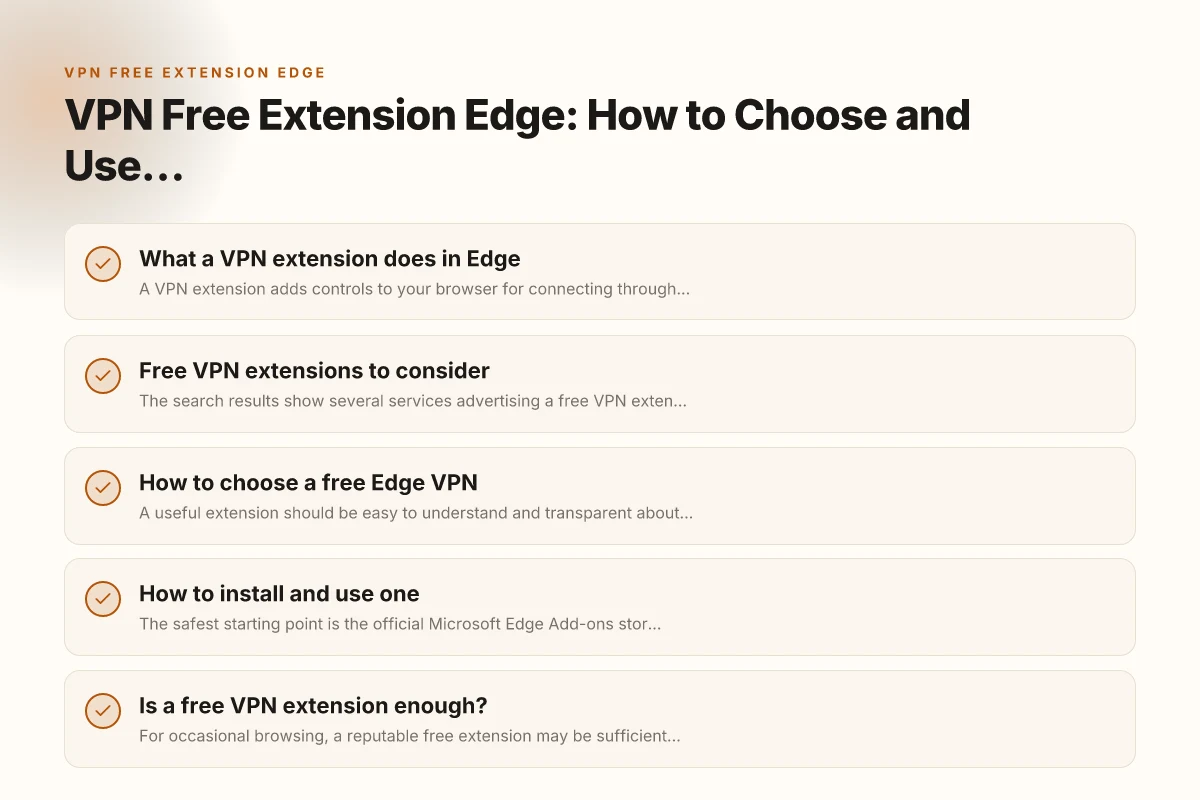
What a VPN extension does in Edge
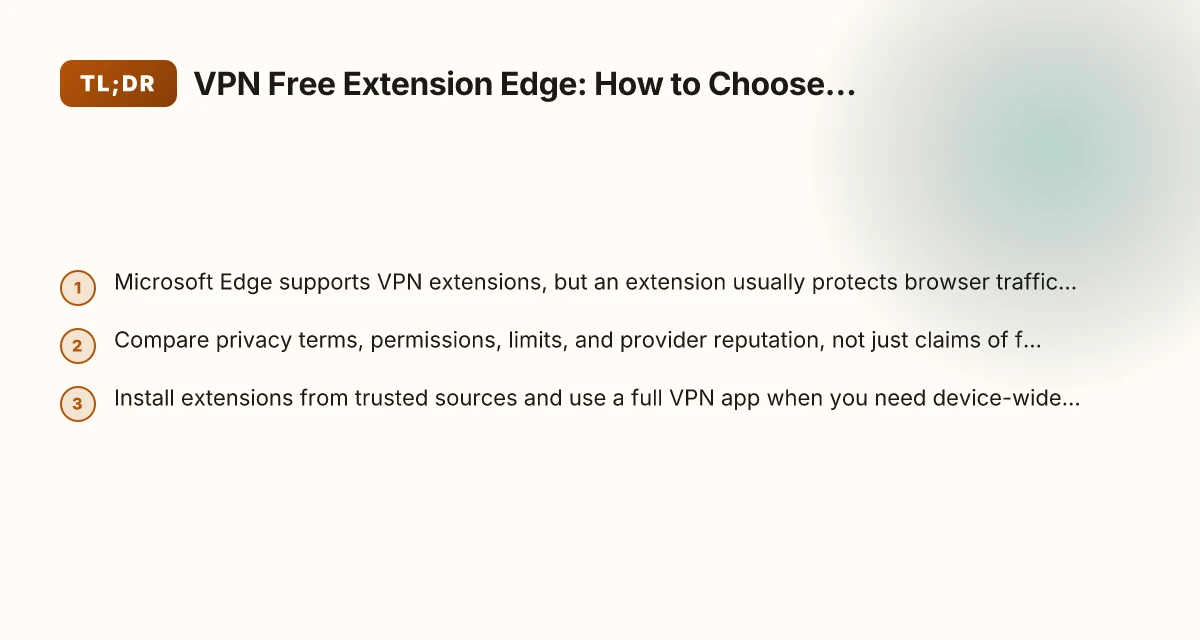
A VPN extension adds controls to your browser for connecting through a VPN service. Depending on the provider, it may route browser traffic through a remote server, helping mask your IP address from websites and making it appear that you are browsing from another location.
That can be useful for everyday browsing, accessing sites that are unavailable on your network, or adding a layer of protection when using public Wi-Fi. However, an extension is not necessarily the same as a full VPN application. It may protect only traffic handled by Edge, while other apps on your device continue to connect directly.
A VPN also does not make you completely anonymous. Websites may still identify you through account logins, cookies, or browser fingerprinting. Treat a VPN as one privacy tool, not a replacement for careful browsing or secure account practices.
Free VPN extensions to consider
The search results show several services advertising a free VPN extension or add-on for Microsoft Edge. Their feature claims come from their own listings, so review each provider’s current policies and product details before installing. NordVPN Extension for Edge: How to Install, Connect, and Choose
| Extension or service | What its listing highlights | What to check |
|---|---|---|
| VeePN | Its Edge add-on advertises a free VPN, access to blocked websites, and secure browsing. | Which features are free, its privacy policy, and whether the extension covers only browser traffic |
| Browsec VPN | Its Edge Add-ons listing describes private browsing and IP protection. | Available locations, connection limits, and data-handling terms |
| VuzeVPN | Its site advertises unlimited VPN access and help bypassing Wi-Fi restrictions. | What “unlimited” includes and the provider’s logging and privacy practices |
| FreeVPNPlanet | Its site promotes hiding your IP and protecting data with an Edge extension. | Permissions, free-plan conditions, and how traffic is handled |
| Surfshark | Offers a VPN proxy extension for Microsoft Edge. | Whether the extension requires a paid account and which protections it provides |
A provider’s marketing is not an independent security audit. Look for clear documentation explaining what data is collected, whether activity is logged, and how the service is funded.
How to assess a free Edge VPN
| Factor | What to look for | Why it matters | Warning sign |
|---|---|---|---|
| Provider identity | Clear company and contact details | Helps assess accountability | Anonymous operator |
| Privacy policy | Plain-language data practices | Shows what may be collected | Vague or missing policy |
| Encryption | Explicit protection details | Helps protect traffic in transit | No clear explanation |
| Data limits | Stated allowance or fair-use terms | Prevents unexpected cutoffs | Limits are undisclosed |
| Server choice | Locations explained | Affects access and performance | Locations are unclear |
| Permissions | Only necessary access requested | Reduces exposure of browser data | Broad, unexplained access |
| Business model | Clear explanation of free access | Helps evaluate incentives | Free service with no explanation |
Compiled November 2026; check the provider's site for current details.
How to choose a free Edge VPN
A useful extension should be easy to understand and transparent about its limitations. Before installing, check the following: VPN Extension for Microsoft Edge: What to Know Before You Install
- Privacy policy: Confirm what information the provider collects and whether it records browsing activity or connection data.
- Permissions: Make sure the requested access makes sense for the extension’s function. Avoid tools that demand broad access without a clear explanation.
- Free-plan terms: Check for data allowances, server or location restrictions, speed limits, or features that require an upgrade.
- Provider identity: Prefer a service with a clear company identity, support information, and readable policies.
- Security details: Look for an explanation of how the connection is protected and what happens if the VPN disconnects.
- Recent reviews and updates: Check the Edge Add-ons listing for current feedback and signs that the extension is maintained.
Be cautious of promises such as “complete anonymity” or “total protection.” A VPN can hide your IP address from the websites you visit, but it cannot prevent every form of tracking or protect you from unsafe downloads and phishing.
How to install and use one
The safest starting point is the official Microsoft Edge Add-ons store. Search for the extension by name, confirm the publisher, and read its description and permissions before adding it to Edge. If you visit a provider’s website, follow its link to the official store rather than downloading an unfamiliar file.
After installation:
- Open the extension from Edge’s toolbar.
- Review its privacy and connection settings.
- Choose a server or location if the service offers that option.
- Connect, then check that the extension shows an active connection.
- Disconnect when you no longer need it, especially if the extension is not set to connect automatically.
Do not assume that an active browser extension protects other software on your computer. For device-wide coverage, check whether the provider offers a full VPN app and use that when appropriate. Free VPN for Edge Extension: How to Choose One Safely
Is a free VPN extension enough?
For occasional browsing, a reputable free extension may be sufficient if its limits suit your needs and its privacy policy is acceptable. It can be a convenient way to route Edge traffic through a VPN service without changing your entire device’s network connection.
For sensitive activity, frequent public Wi-Fi use, or protection across multiple apps, consider a full VPN application from a provider you trust. A free browser extension may not offer the same scope of protection, and some services reserve features or support for paid plans. Avoid choosing solely by advertised speed, unlimited access, or the number of locations.
Safe Edge VPN setup and use
| Step | Action | Check | If something seems wrong |
|---|---|---|---|
| 1 | Find the extension in Edge Add-ons | Confirm the publisher | Do not install an imitation |
| 2 | Review its listing | Read permissions and privacy policy | Choose another provider |
| 3 | Install the extension | Approve only requested permissions | Remove it if access seems excessive |
| 4 | Sign in or create an account | Use the provider’s official site | Avoid unexpected sign-in pages |
| 5 | Connect to a location | Confirm the connection status | Disconnect if it fails repeatedly |
| 6 | Test the sites you need | Check access and basic functionality | Try another server or service |
| 7 | Review the free-plan terms | Check limits and renewal details | Stop if terms are unclear |
| 8 | Disconnect or uninstall when finished | Confirm the extension is no longer active | Remove it if you no longer trust it |
Compiled November 2026; check the provider's site for current details. Free VPN Edge Extension: How to Choose One for Microsoft Edge
Recommendation
A VPN free extension for Edge is worth considering for browser-level privacy and convenience, but choose carefully. Compare the provider’s policies and free-plan restrictions, install through the official Edge Add-ons store, and remember that an extension may not protect traffic outside Edge. If you need broader coverage, use a reputable full VPN app instead.